
Chat AI admin area
How to log in to the admin panel?
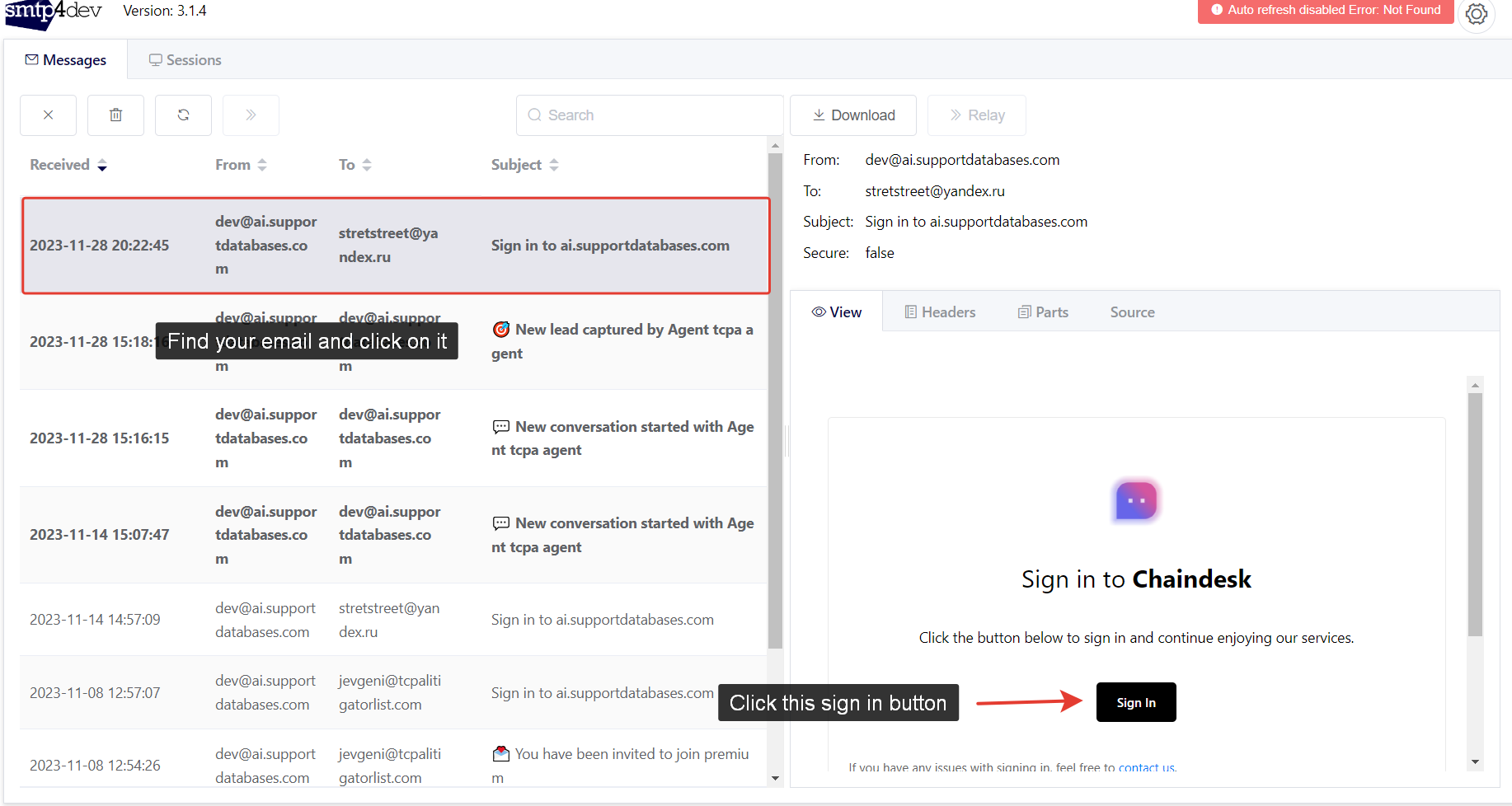
Open https://ai.supportdatabases.com/signin and enter your email address.
Then open http://mail.ai.supportdatabases.com and log in.
Login: devmail
Password: mA2nh4b295kyMd9YFV9KLXz
Here you will see a list of mails and one of them is yours, so you need to find it and click "Sign in".
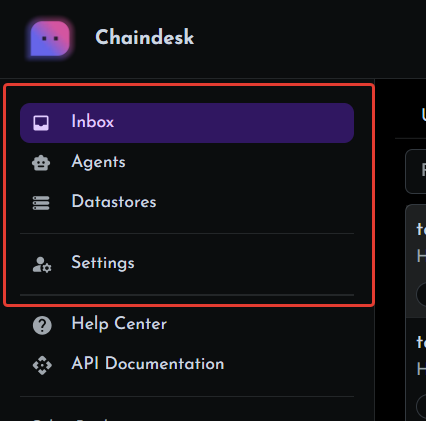
Navigation.
The admin area has next pages:
1. Inbox - A page that contains a list of initiated chats.
2. Agents - On this page you can manage agents. An agent is an AI assistant that gives responses based on connected datastores.
3. Datastores - On this page you can manage datastores. A datastore is a container that holds different type of datasources (files, web pages, etc...).
4. Settings - On this page you can set up your personal information like name, email etc.
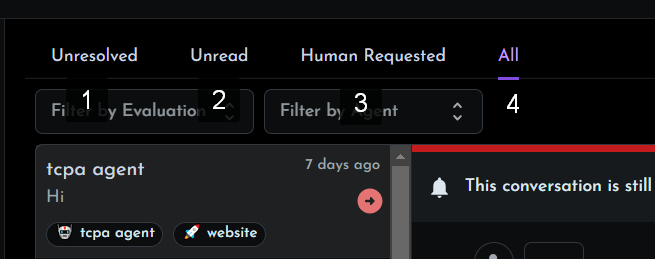
Inbox page.
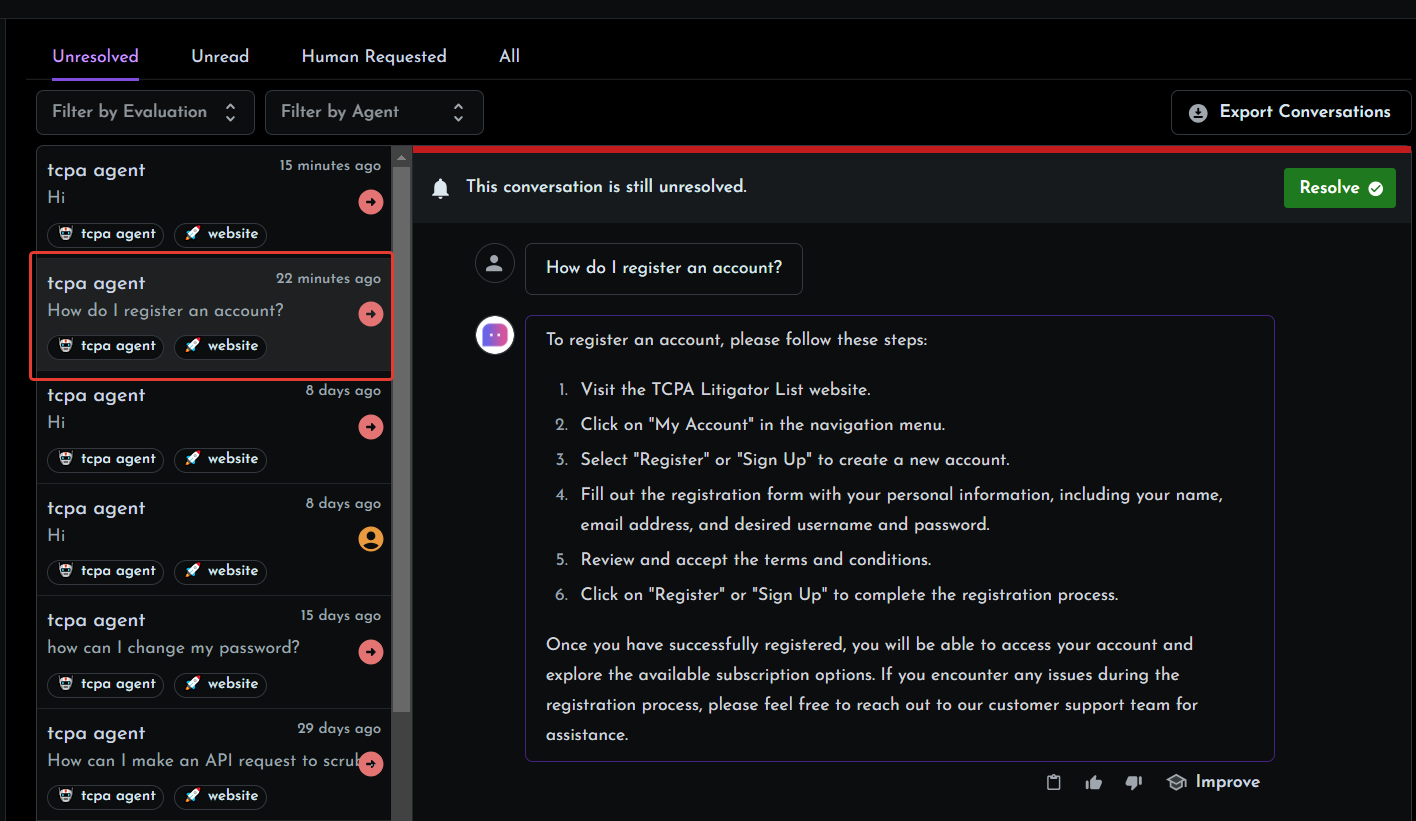
All chats you can find on this page. There are 4 tabs:
1. Unresolved - Chats that are not marked as resolved.
2. Unread - Chats that have new messages.
3. Human Requested - Chats where a user clicked on the "Request human" button.
4. All - All chats
Support lifecycle.
1. A user write a message to the AI chat.
2. A conversation is being created and the AI assistant writes a response automatically.
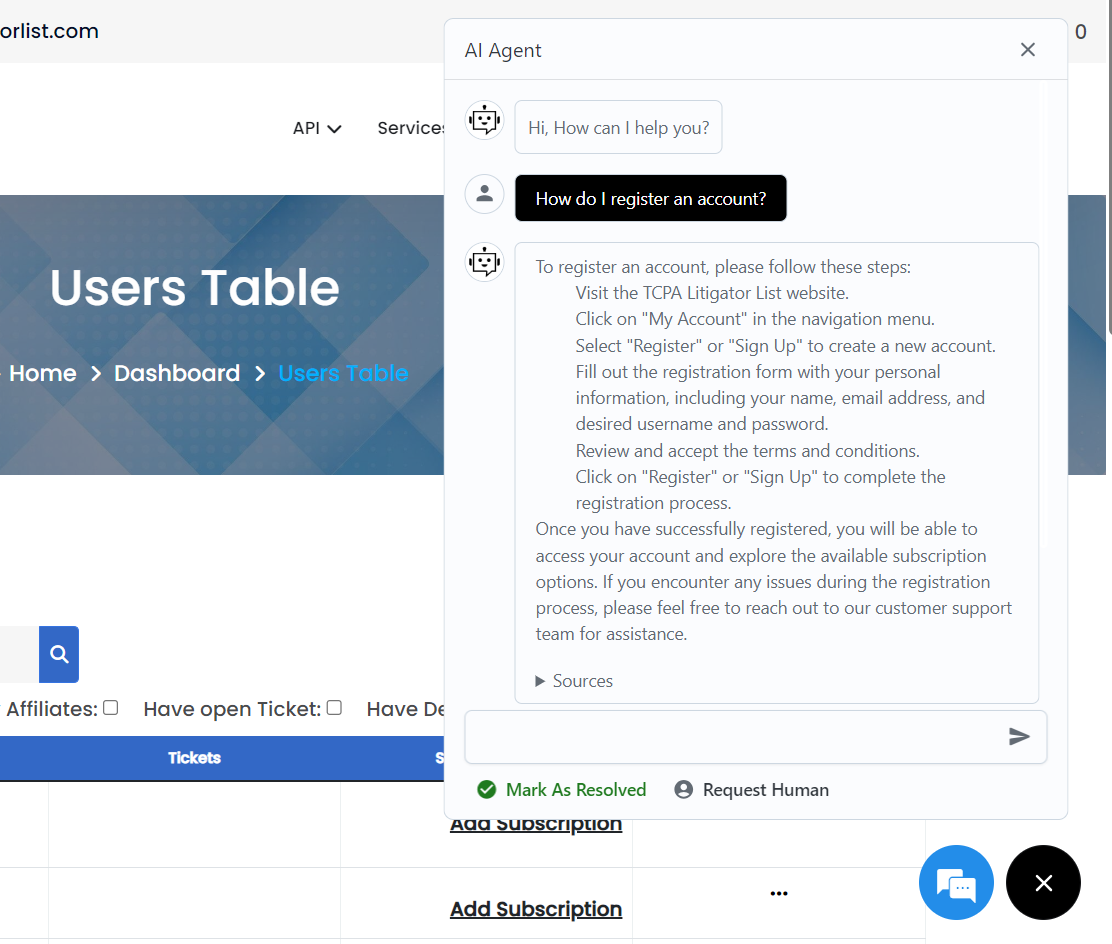
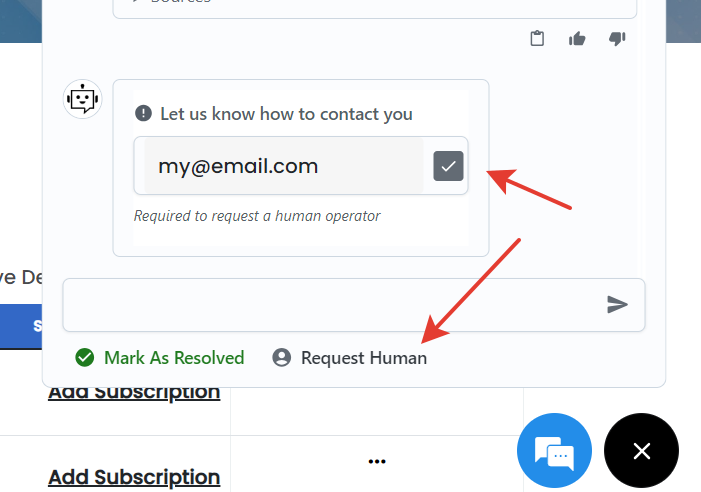
 3. If the user gets an unsatisfactory response, he can request a human by providing his email and clicking the "Request human" button.
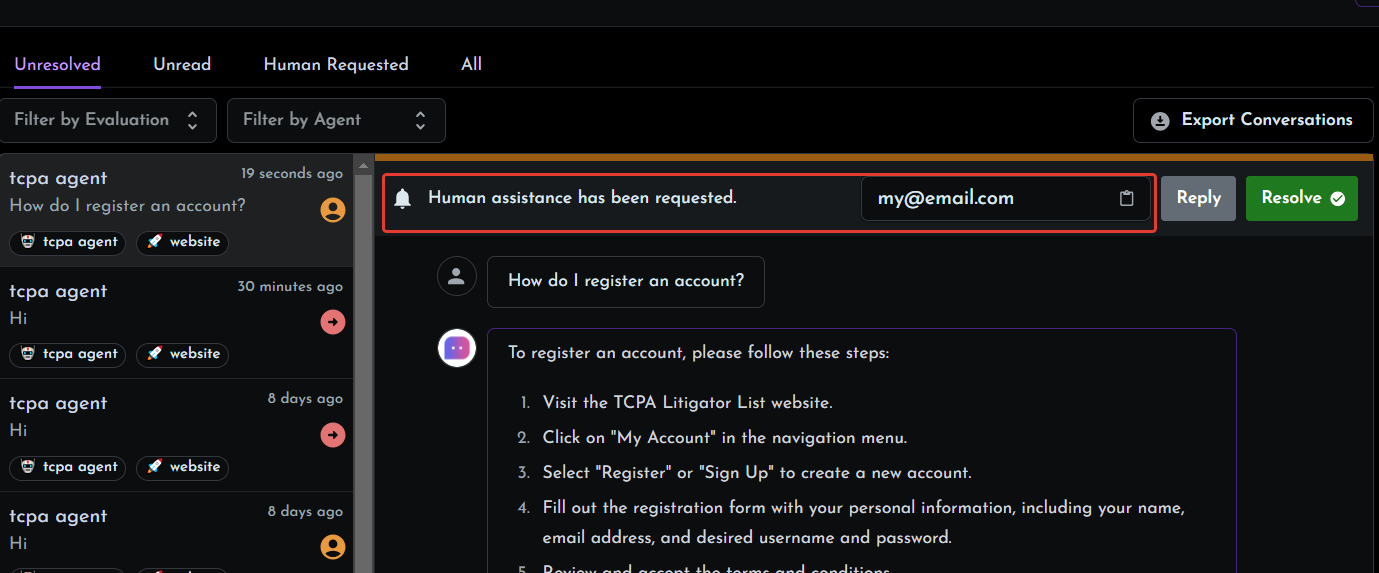
On the admin side you will see a notification with the provided email. (Communication between people takes place via e-mail.)
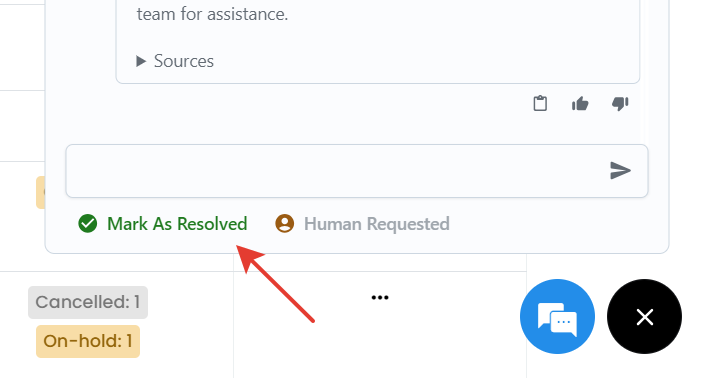
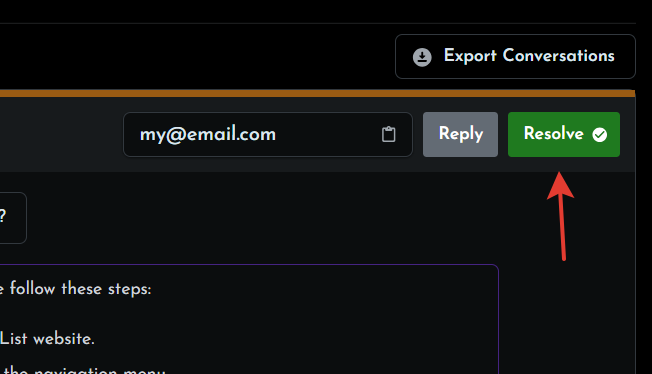
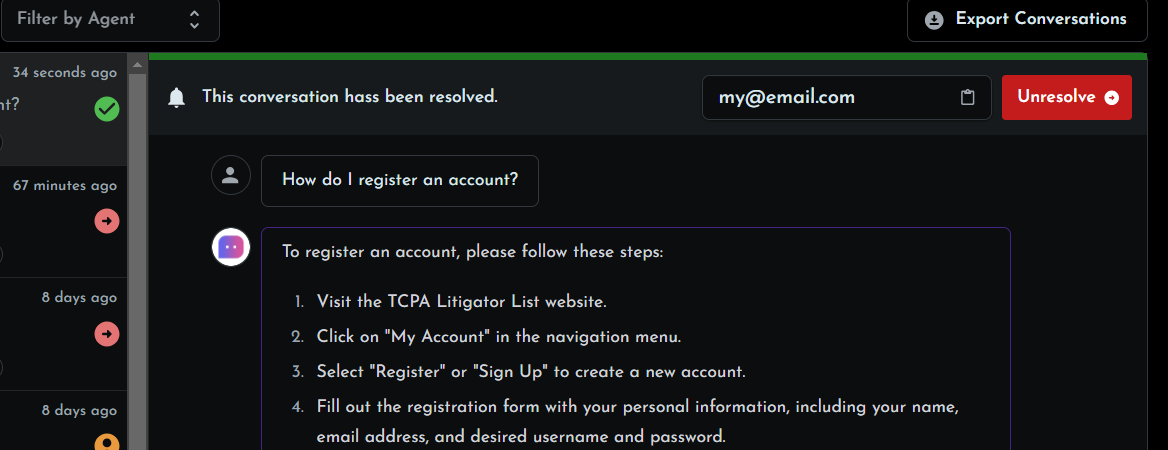
4. When the conversation is finished. The user can click on the "Mark As Resolved" button to finish and close current conversation. Or an admin can click on the "Resolve" button to do the same action.
5. Done.
No Comments